
Preference requests appear in the requests table with type "Preferences".
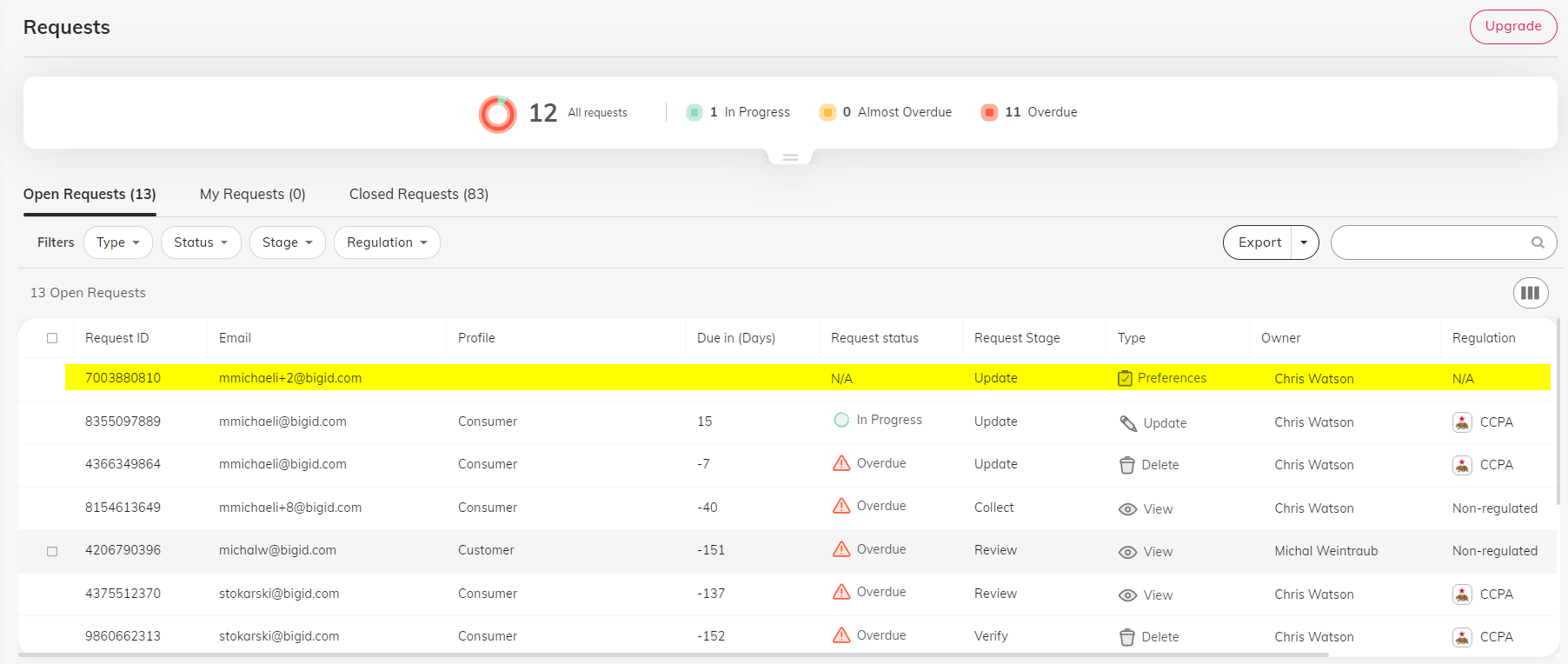
1. Open the request
Click on the request to open it.
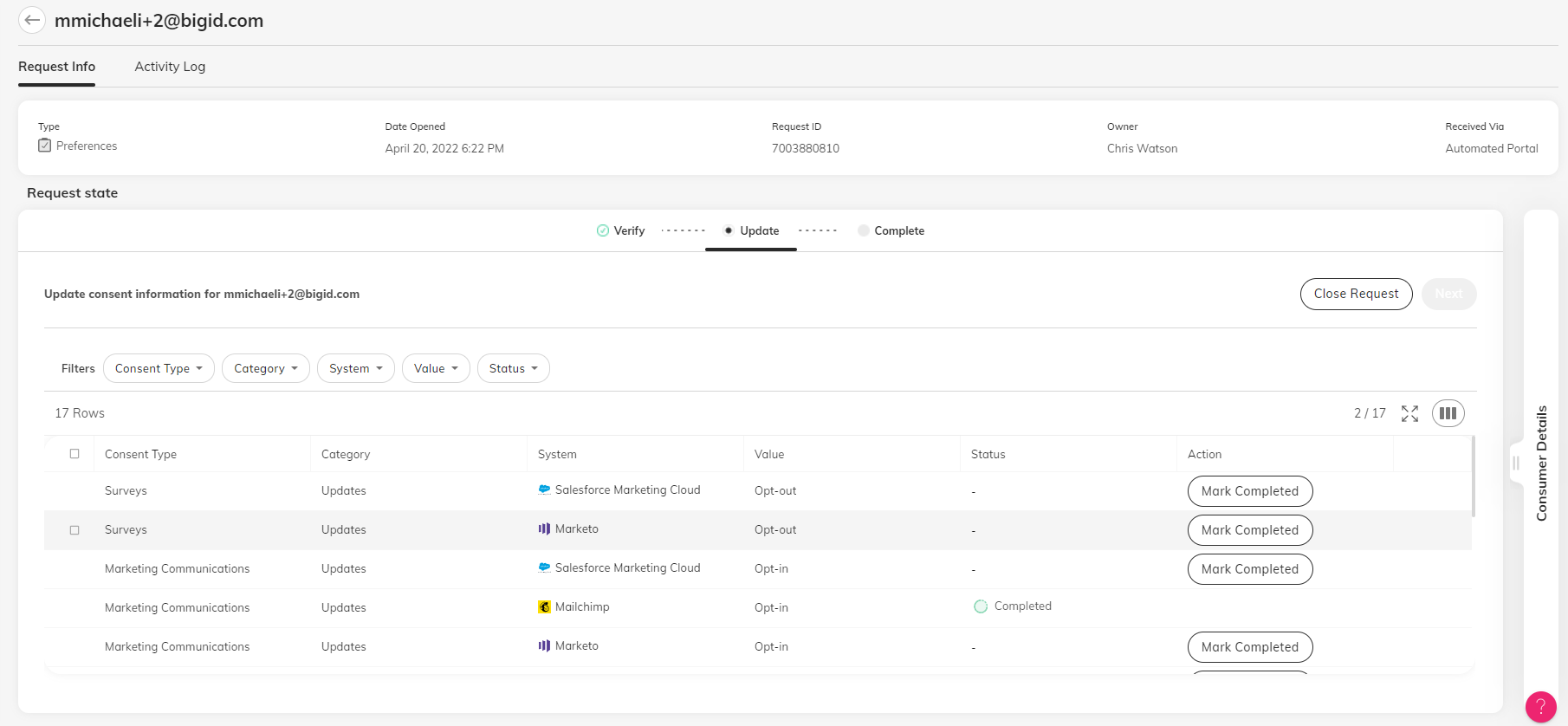
The top pane of the Request Info tab displays summary information about the request.
The Request state pane displays each individual preference that the consumer has specified in the Preferences form on the consumer site, with the consent type and category that you have configured and the system to which it is mapped. The Value column displays the consumer's opt-in or opt-out for each individual preference.
The top row in the pane indicates the stage of completion of processing the request. Clicking on each stage changes the information shown in the pane below according to what is needed to complete that stage.
- Verify - confirm the identity of the requestor. This stage is completed automatically if automatic systems are included in the request.
- Update - update all systems relevant to the request with the consumer's selected preferences.
- Complete - close the request and notify the consumer.
You can click Close Request in the top right corner of the table to close the request if needed, without completing it.
The filters at the top of the pane enable you to filter the table by column criteria that you select. Click on the filter to open a list of values in that column to select:

The icons in the top right corner of the table enable you to modify how the table is displayed, for your convenience. You can customize which columns are shown in the table, expand the table, and see how many preference systems have been updated, out of the total number of systems included in the request.

You may click on the Customer Details tag on the right to open a pane showing the consumer's identifying information.
2. Update preference systems
Processing the preference request means updating all the systems in the request with the preferences selected by the consumer.
Automated systems are updated automatically when the consumer saves their preferences in the consumer site.
Manual systems require that preferences be updated manually. When the update is complete, click Mark Completed in the request page to track the progress of the request. Note that marking a system completed cannot be reversed. When all systems have been updated, you may move on to the Complete stage by clicking Next.
Note that requests from consumers that are not found in automated systems must be updated manually.
See Consent & Preferences for more information on mapping preference systems.
3. Finalize Request
Click Confirm & Close Request.
Comments
0 comments
Please sign in to leave a comment.