
A Delete request is a request to remove all information for a user from the organization's systems. Delete requests are sent by, or on behalf of, users through BigID.me's Privacy Center.
All Delete requests are listed in the Requests page in BigID.me. Every time a new request is sent, it's added to the Open Requests list, and a notification is sent to the administrator. Throughout the request management process, notifications about completed stages are sent to the user and the administrator. When request processing is complete, the request is moved to Closed Requests.
To see your open Delete requests that are awaiting action:
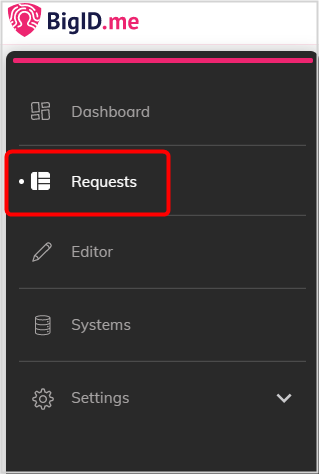
- In BigID.me, from the left navigation bar, click Requests.
- Under Filters, select the Type as Delete.Delete requests that are at any stage of the request management process are displayed.
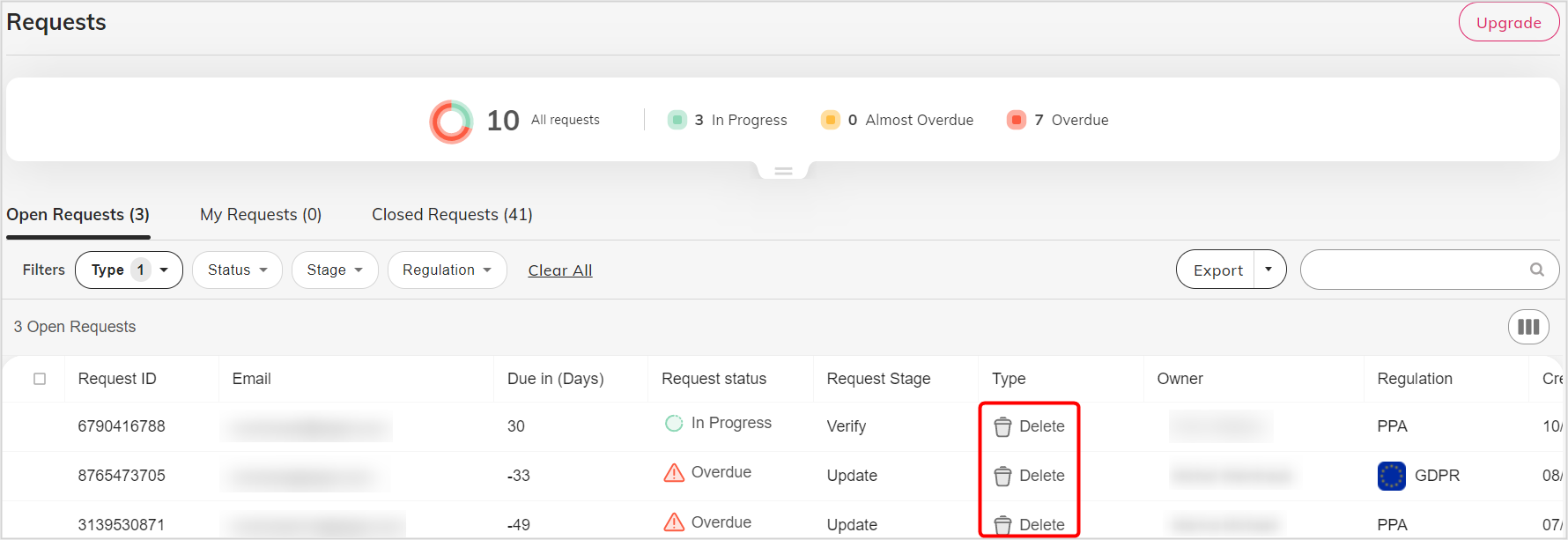
You can filter the table according to status, stage or privacy regulation. You can also export the list to a CSV file.
To view a deletion request, click the request row.
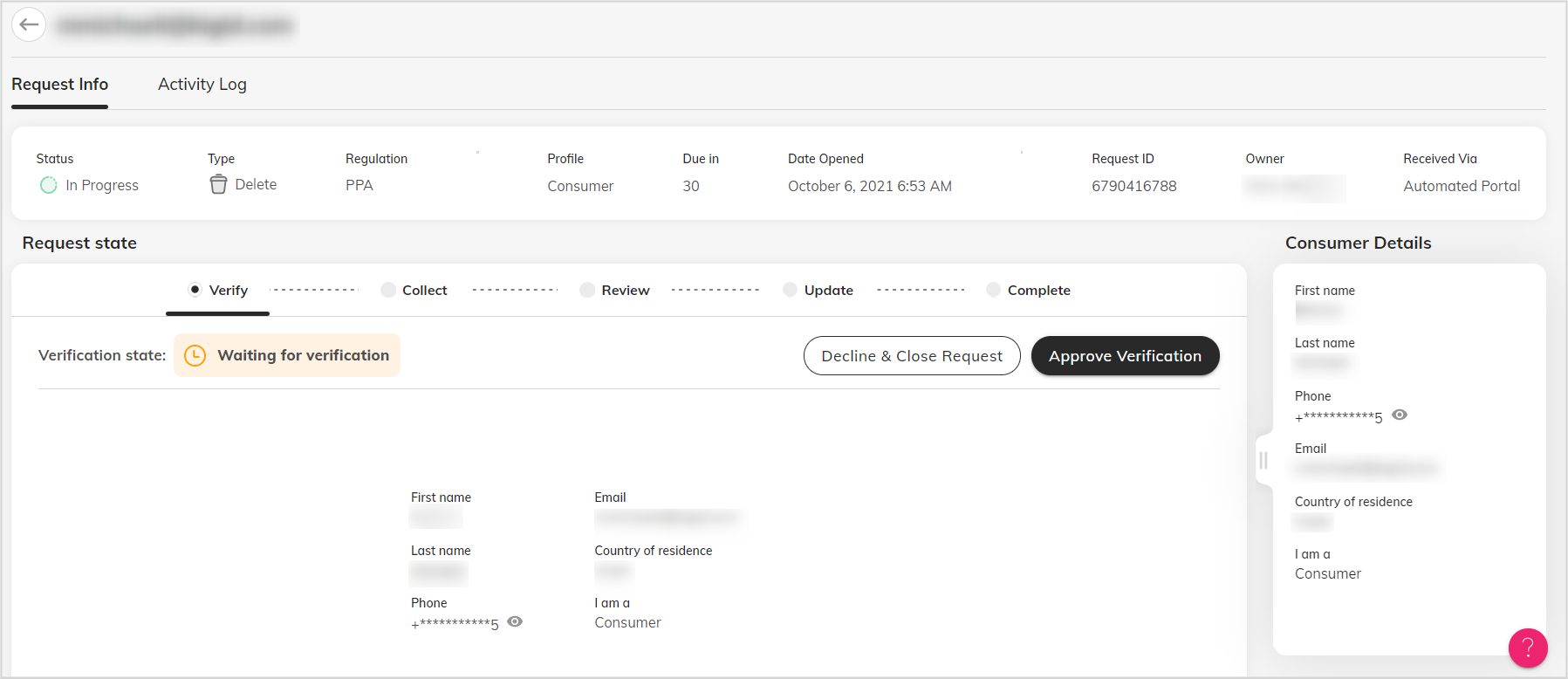
The Request Info tab displays information about the request, the state of the request, and the details of the user. The Activity Log tab lists all the actions that were performed on the request, manually or automatically.
At any stage in the request management process, you can use Decline & Close Request to close the request.

When you decide to close a request, select the reason for closing it, and decide if the user will be notified. You can fully edit the message sent to the user.
You can also send a reminder to a user to take action on a request. To send a reminder:
- Under Actions in a row, click
 .
. - Select a user.
- Edit the message.
- Click Send.
Delete Request Management
The Delete Request goes through the following stages:
- Verify - confirming the identity of the requester
- Collect - gathering data from connected systems
- Review - checking and organizing the data
- Update - deleting the user's data per system
- Complete - closing the request and sending deletion approval to user
1. Verify User Identity
When you receive a request from a user, you must verify that the request is coming from this user by checking their personal details as entered in the form.
Click Approve Verification to approve the consumer's identity and continue managing the request, or Decline & Close Request to decline the request.
2. Collect User Data
BigID.me scans the connected systems in the organization, and searches for personal data about the user.

When the scan is completed, BigID.me displays the systems that were scanned and the number of records found in each system under Auto collect.
You can also import records manually from your connected systems.
To add records manually:
- Click Import.
- Click Download Template.
- Save the CSV file locally, and add the relevant data for the records.
- Upload the updated file.
- Click Import.
The manually added records are displayed under Manual collect.
If no data is found, the request closes automatically and the consumer is notified.
When all the data is collected, click Next to move to the next stage.
3. Review User Data
BigID.me displays the personal information found in the connected systems in a table. At this stage, you can customize the table and mask the information.
4. Update User Data
For each system, you can fulfill Delete requests in one of two ways:
Quick Delete to automatically delete all the records found for this user within a system.
Manual Delete to delete all the records found for this user manually and to update BigID.me.
Quick Delete
Quick Delete performs an automated deletion of scanned records per system. Quick Delete is currently available for selected systems, and is continuously being developed to include more systems.
To automatically delete all the records found for this user in a system:
- Click Delete Records in the system row.

- In the Delete Records page, click Quick Delete.
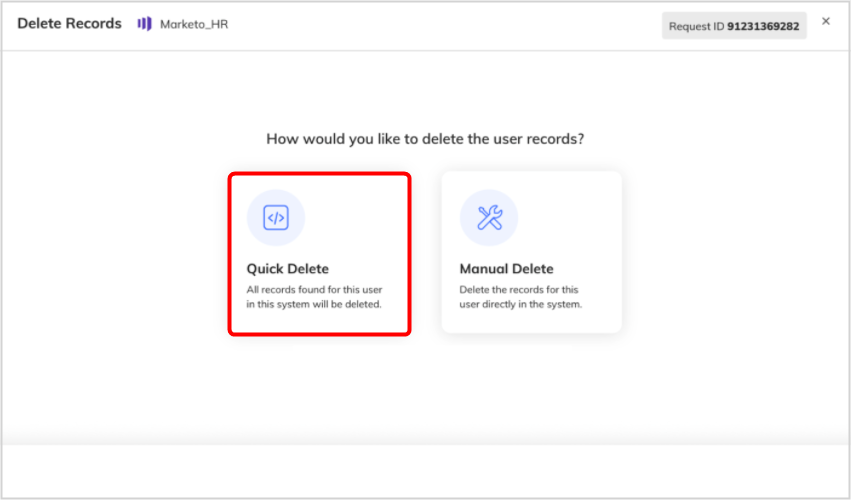
BigID.me displays a summary of the records found in this system for this user.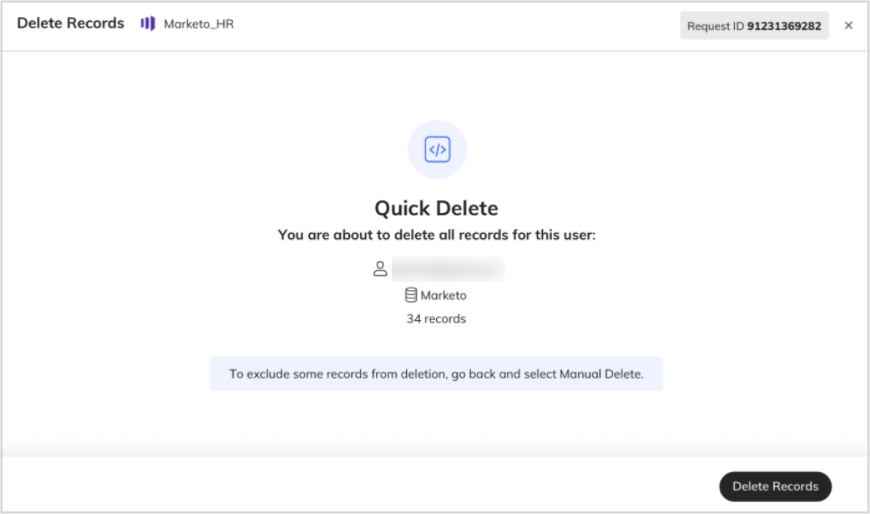
- Click Delete Records.
A confirmation popup is displayed. - Finalize the deletion.
a. If you're not sure you want to delete all the records for this user in this system, in the Confirm Delete popup, click Cancel. You can then use Manual Delete to create tasks for only some records to be deleted.
b. To confirm the automated deletion, click Delete.
Manual Delete
Manual Delete involves deleting the records directly in the system, and updating BigID.me that the deletion was completed.
To delete records manually:
- Create tasks for data source owners to delete the requested records.
- When a data source owner informs you that they deleted the records in a specific system, click Delete Records in the system row.

- In the Delete Records page, click Manual Delete.
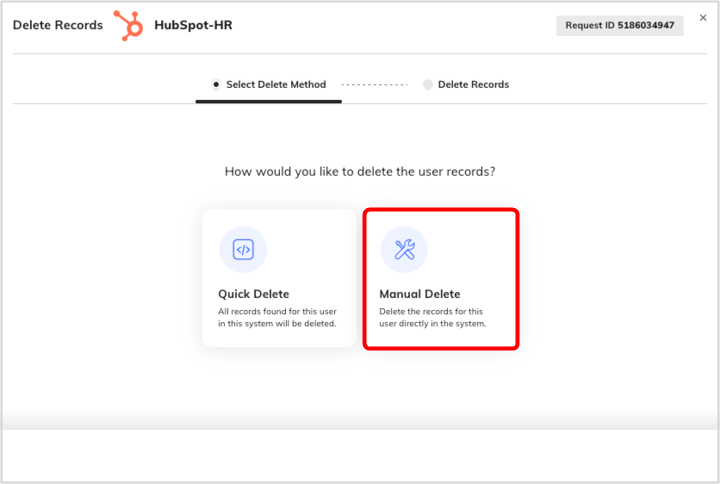
BigID.me displays a summary of the records found in this system for this user.
- Click **Done**.
A confirmation popup is displayed. - Finalize the deletion.
a. If you're not sure that the Data Source Owner deleted all the records for this user in this system, click Cancel. You can then use Manual Delete again to create more deletion tasks.
b. To confirm that the deletion was completed in this system for this user, click Yes, mark as completed.
5. Finalize the Delete Request
When a Quick Delete or a Manual Delete is completed for a system, the system is marked as Deletion Completed.
When all the systems for a user are marked Deletion Completed, the request is marked Completed. To close the request, click Confirm & Close Request. The request is closed and a notification is sent to the user.
Comments
0 comments
Please sign in to leave a comment.