
Preference Automation
Preferences Consent automates preference management by connecting consumer preference selections to your consent systems, providing your consumers with self-service consent management.
Automated consent works by mapping Consent Types, corresponding to preference types that you defined in the Portal Editor which creates the consumer Preference Center. When you map consent types to distribution lists in your consent systems, preference selections made by the consumer in the Preference Center will automatically add the consumer to the mapped distribution lists. The consumer can then view and update their preference, whether opted in or out, in the consumer site Preference Center.
Supported Systems
Automated Systems
Automated consent works with systems that support automated communication with the Privacy Portal, listed in Autoscan Systems. See Autoscan Systems for a list.
Manual Systems
By mapping manual systems for consent automation, you enable preference requests to create manual tasks to update the connected manual systems. This helps you manage the requests, delegate the tasks, and track their progress in the admin site.
Main Page
The Consent & Preferences page, available in the left navigation bar, lists consent types mapped to automated systems.
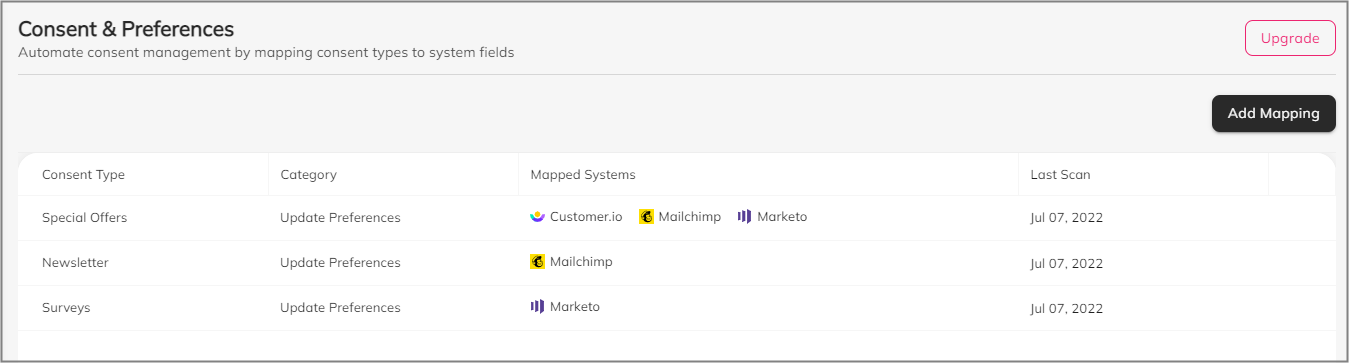
Each row in the table presents one consent type with one or more mappings.
Each mapping links the consent type, corresponding to a preference type that you defined in the Portal Editor, to a distribution list that exists in your connected systems. You may connect multiple distribution lists to a single consent type, but each distribution list can be mapped to only one consent type.
| Column | Description |
|---|---|
| Consent Type | One consent type per preference type you defined in the Portal Editor. |
| Category | Preference type category as you defined in the Portal Editor. |
| Mapped Systems | Systems containing distribution lists mapped to this consent type. |
| Last Scan |
Datestamp of the most recent scan of any of the mapped systems of this consent type. Scan returns the available distribution lists for creating mappings, described below. Scans run automatically every 24 hours by default. |

Create Mapping
Click Add Mapping to create a new mapping.
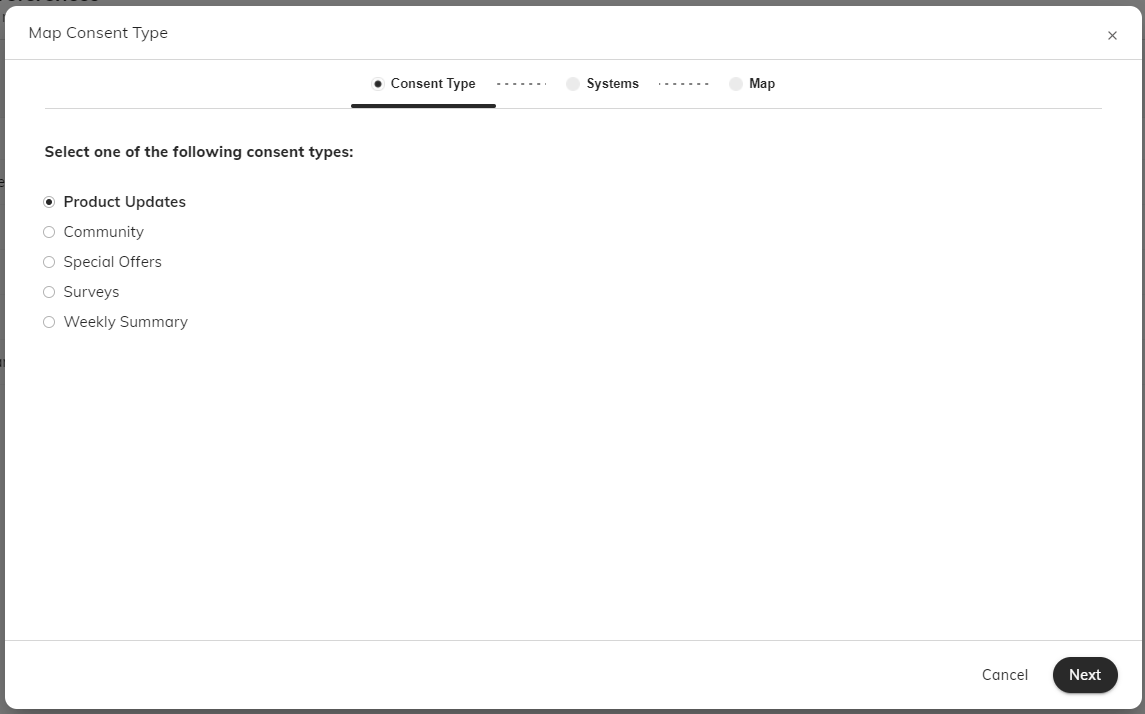
1. Select a consent type and click Next. The list of available consent types corresponds to the preference types configured in the Portal Editor.
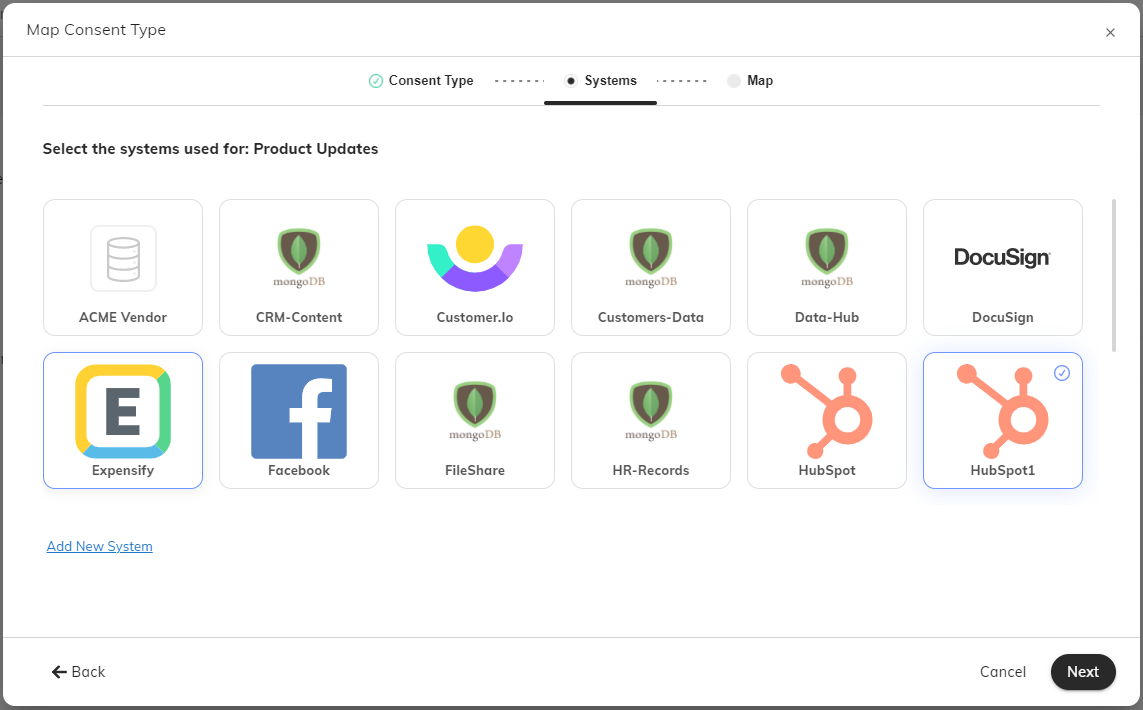
2. Select one or more systems that you wish to map to this consent type, and click Next.
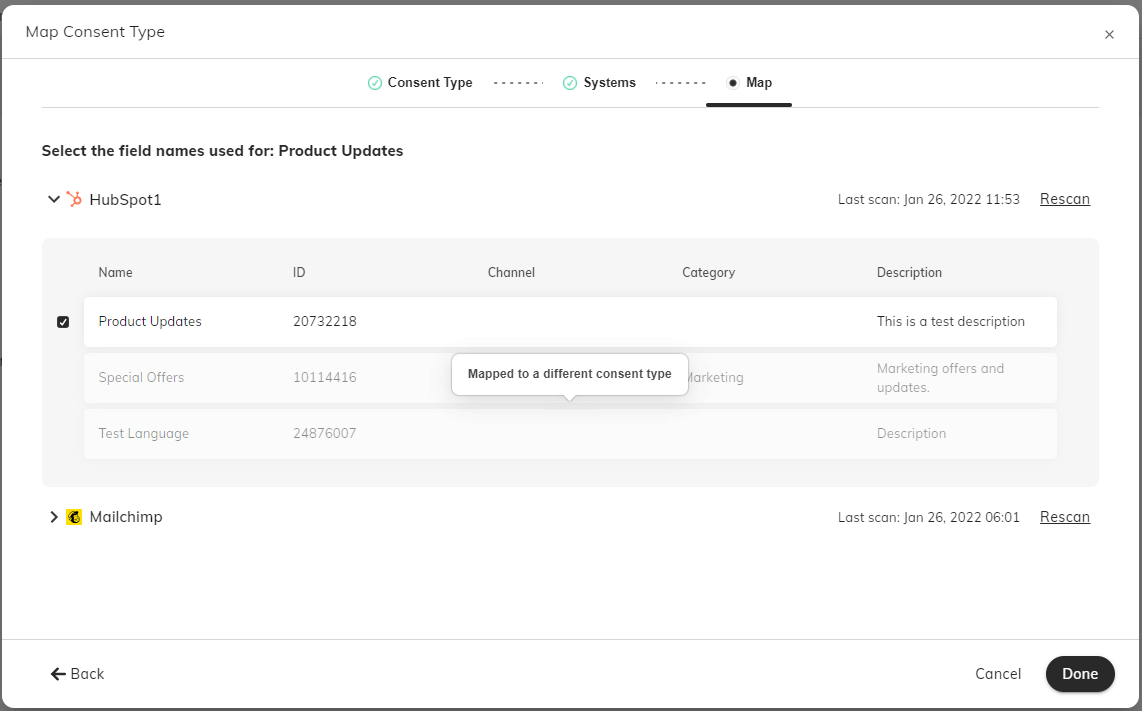
3. Select one or more distribution lists you wish to map to this consent type.
This page shows all distribution lists available on the selected systems as of the most recent scan, per the datestamp shown in the top right corner. Click Rescan to update the lists for each system. Scans run automatically every 24 hours by default.
Distribution lists already mapped to other consent types are grayed out. You may select one or more of the available distribution lists to map to the selected consent type.
Click Done to save your changes and exit the screen, or Cancel to exit without saving.
View Mappings
Click on a row in the main page to view all mappings for the selected consent type.
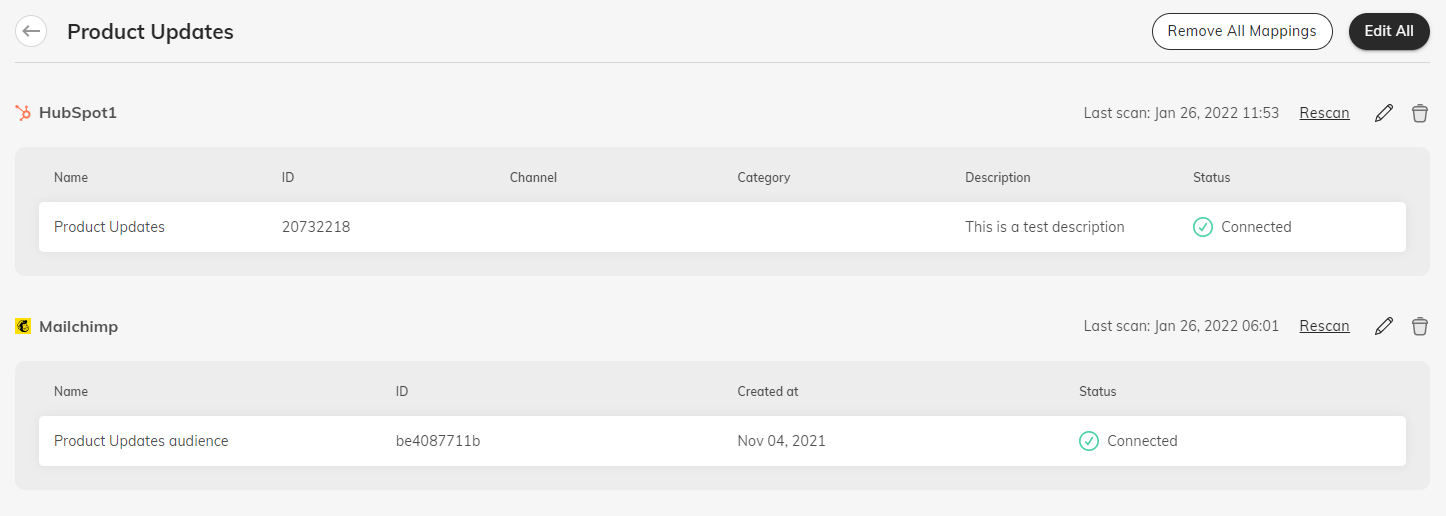
All mappings show the fields Name, ID, and Status. Other fields depend on the fields contained in each specific system.
Click Rescan to update the lists of available distribution lists from each system.
Click the trash icon to delete the mapping.
Click the pencil icon to edit the mapping.
Edit Mapping
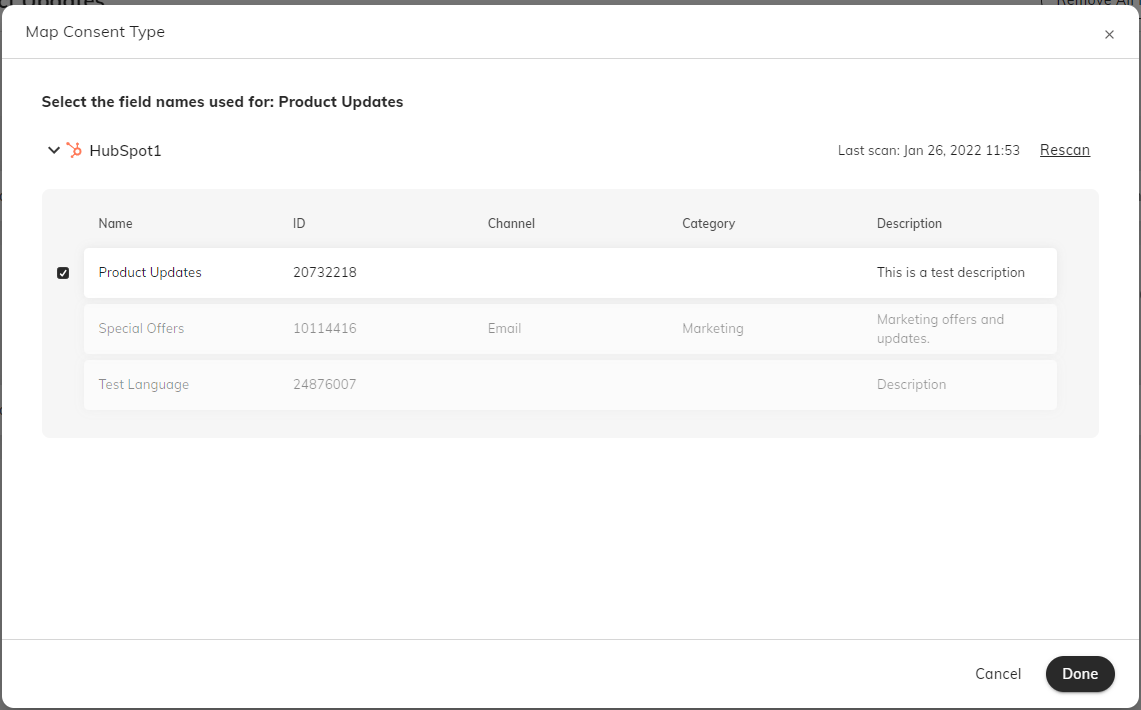
This page shows all distribution lists available on this system as of the most recent scan, per the datestamp shown in the top right corner for each system. Click Rescan to update the lists.
Distribution lists already mapped to other consent types are grayed out. You may select one or more of the available distribution lists to map to the selected consent type.
Click Done to save your changes and exit the screen, or Cancel to exit without saving.
Comments
0 comments
Please sign in to leave a comment.