
Sign up, create your site, and add users
Creating your BigID.me site is a simple, self-service process. Once you have created your site you can receive access requests from your users.
Onboarding includes the following steps:
Admin Sign-Up
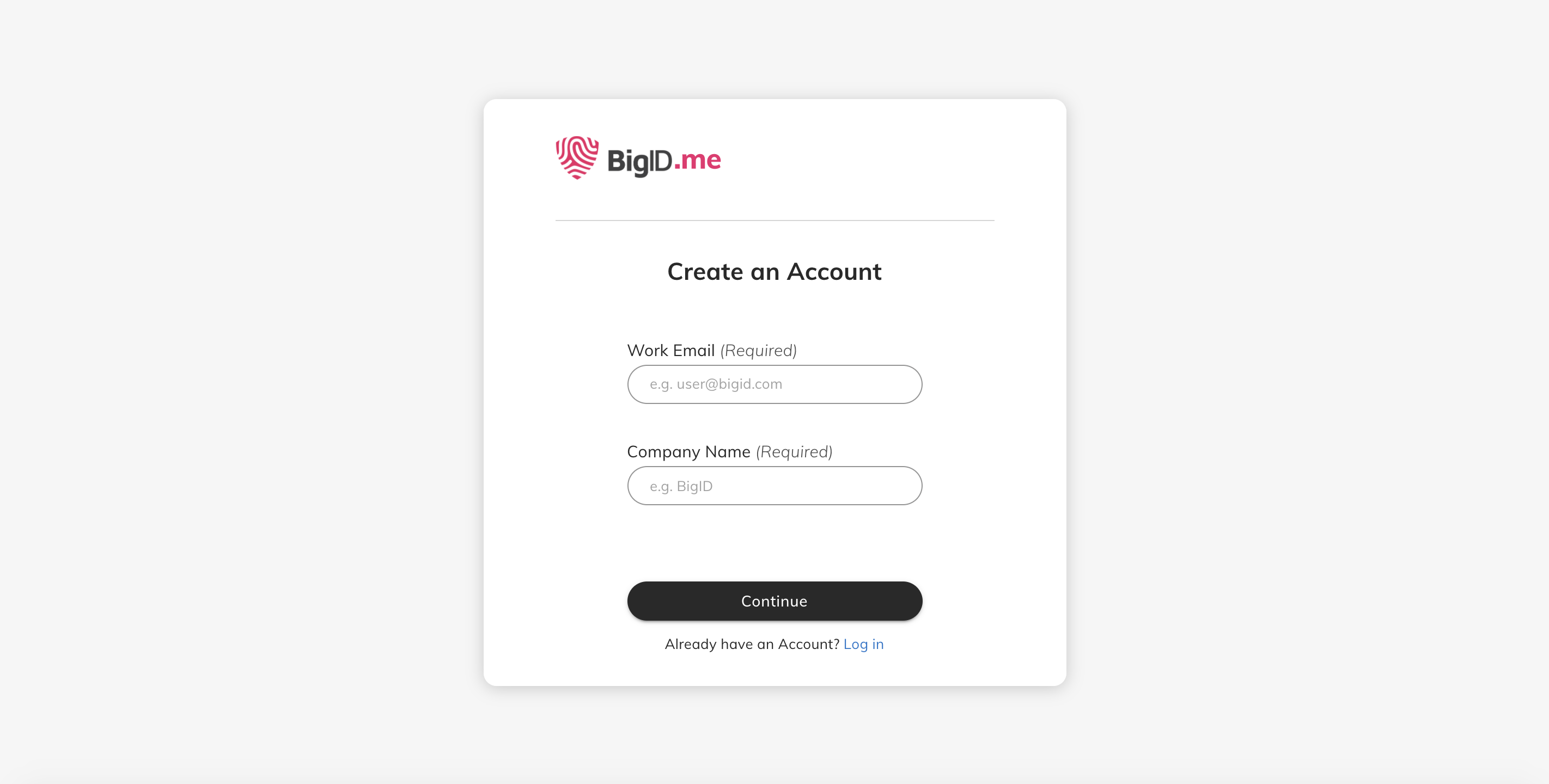
- In the Create an Account screen, enter your work email and company name. Click Continue.
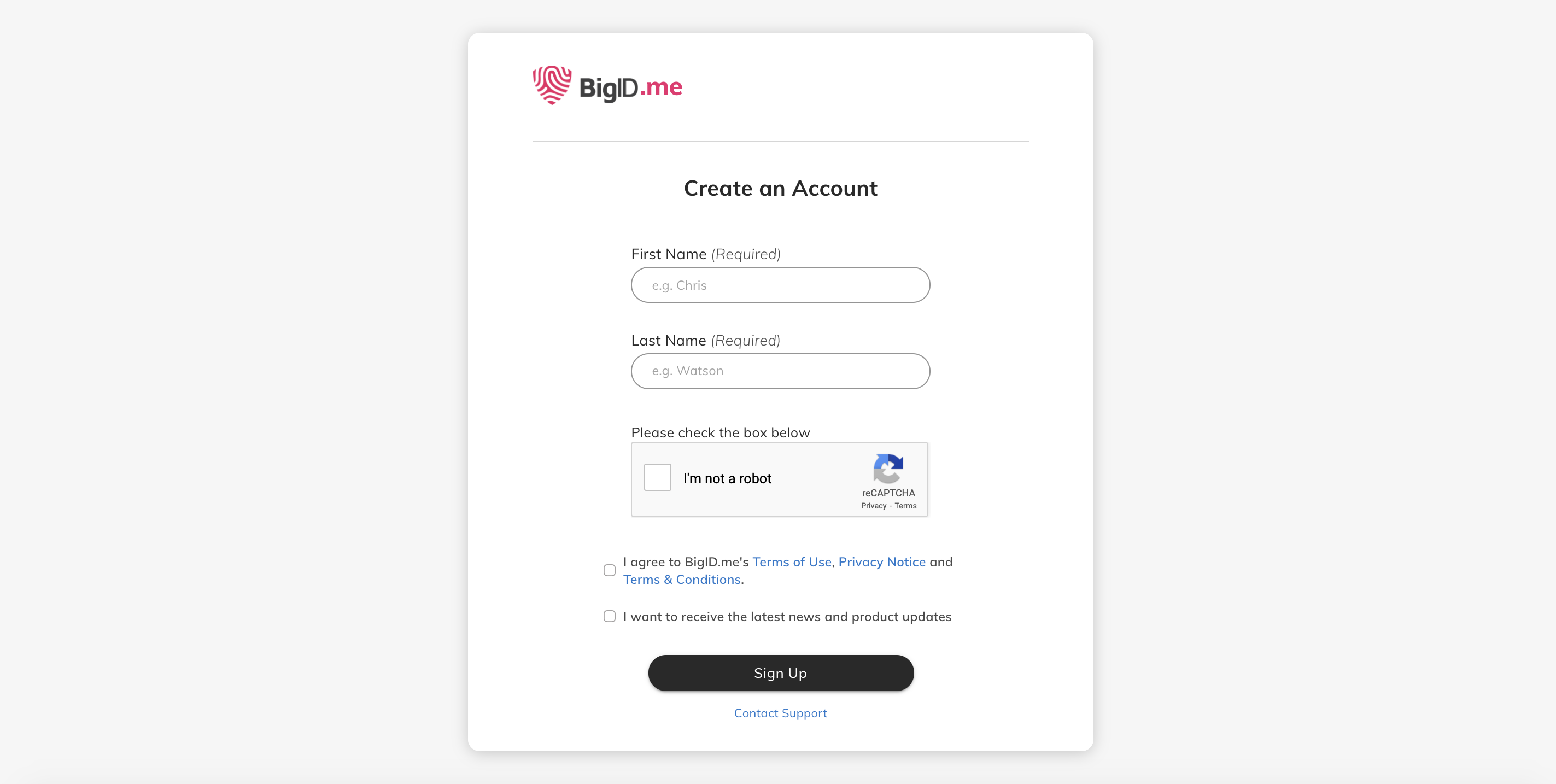
-
Create an account by entering your name and last name, and check the I'm not a robot box. Make sure you read the Terms of Use, Privacy Notice and Terms & Conditions. Click I agree to and then Sign Up.
-
Once you click the email, a Thank You message is displayed. BigID.me then creates your account and displays a temporary password to use in the next step.
-
Copy the temporary password.
-
In the Log In screen, submit the temporary password displayed in the previous message.
-
In the Set a New Password screen, create a new password.
BigID.me is now set up for your company.
Create Your Portal
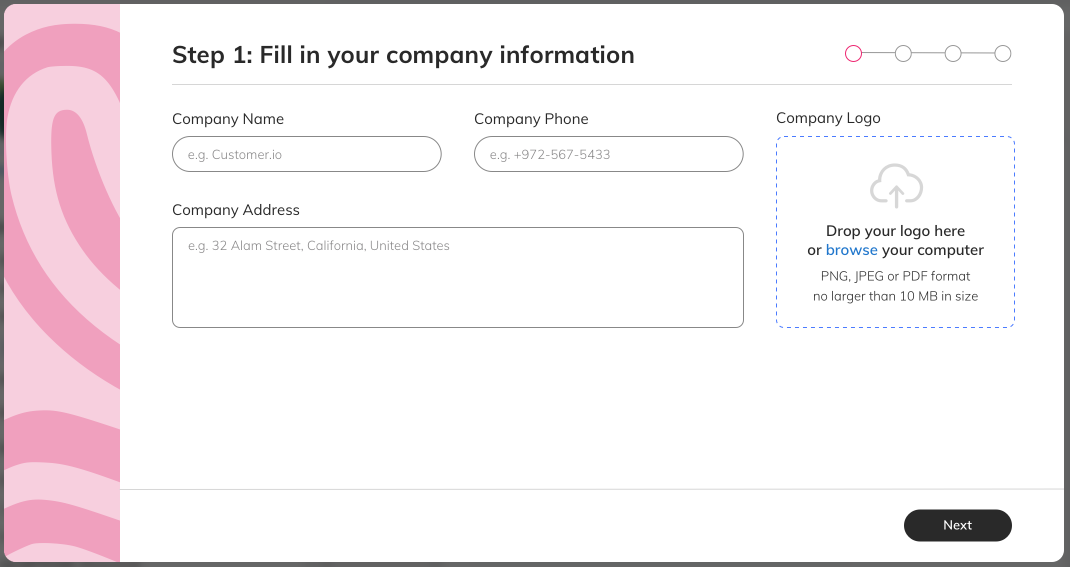
- Fill-in company information.
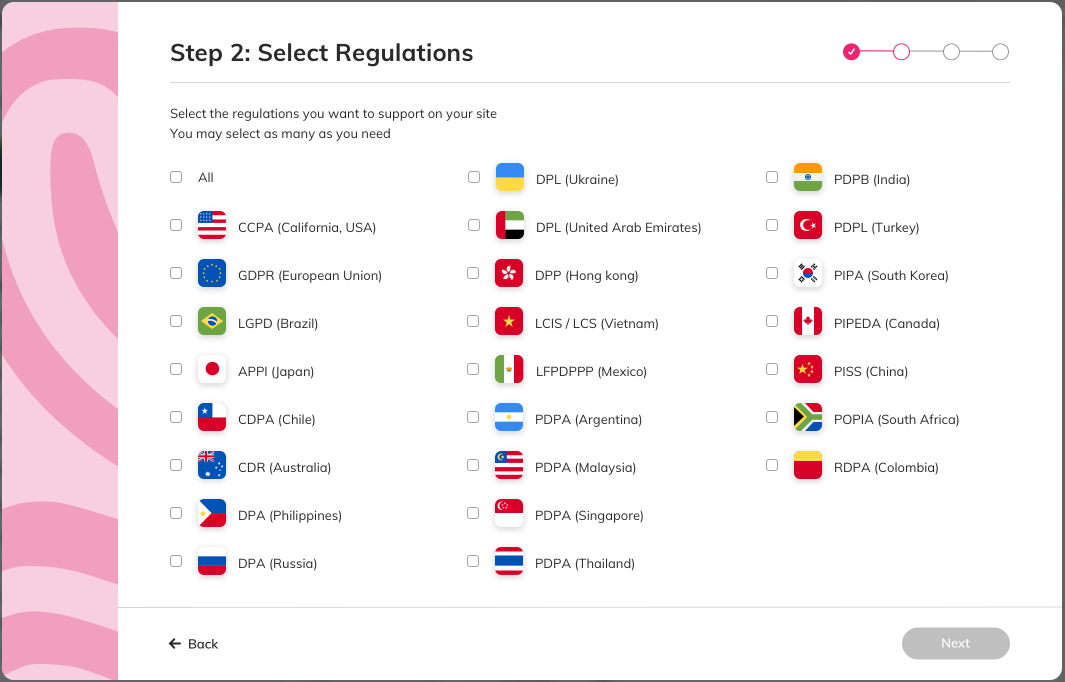
- Select the regulations you want to support on your site.
- Create the request form for the consumer.
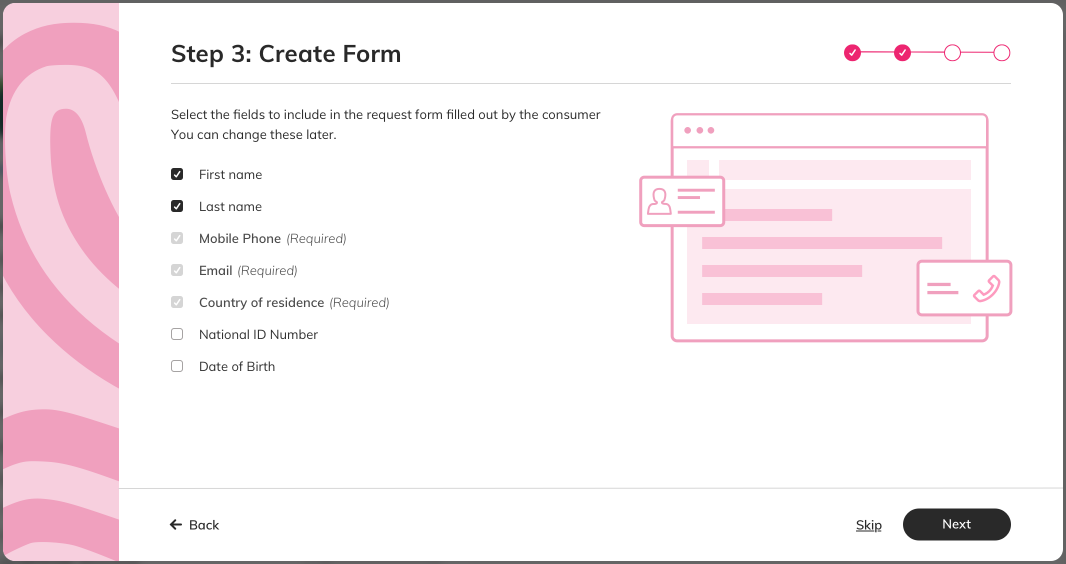
- Select the profiles to support in the request form.
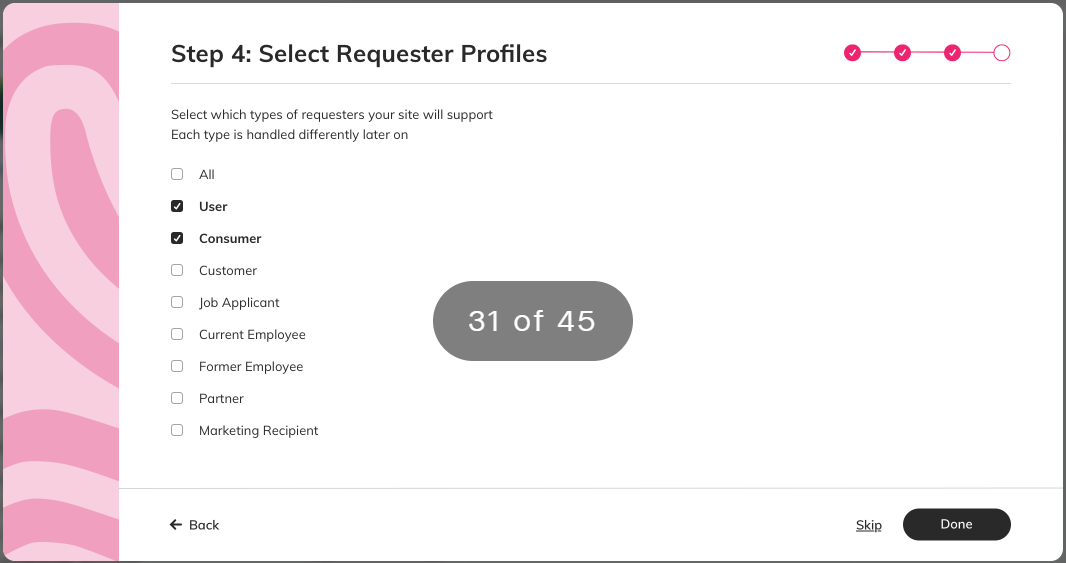
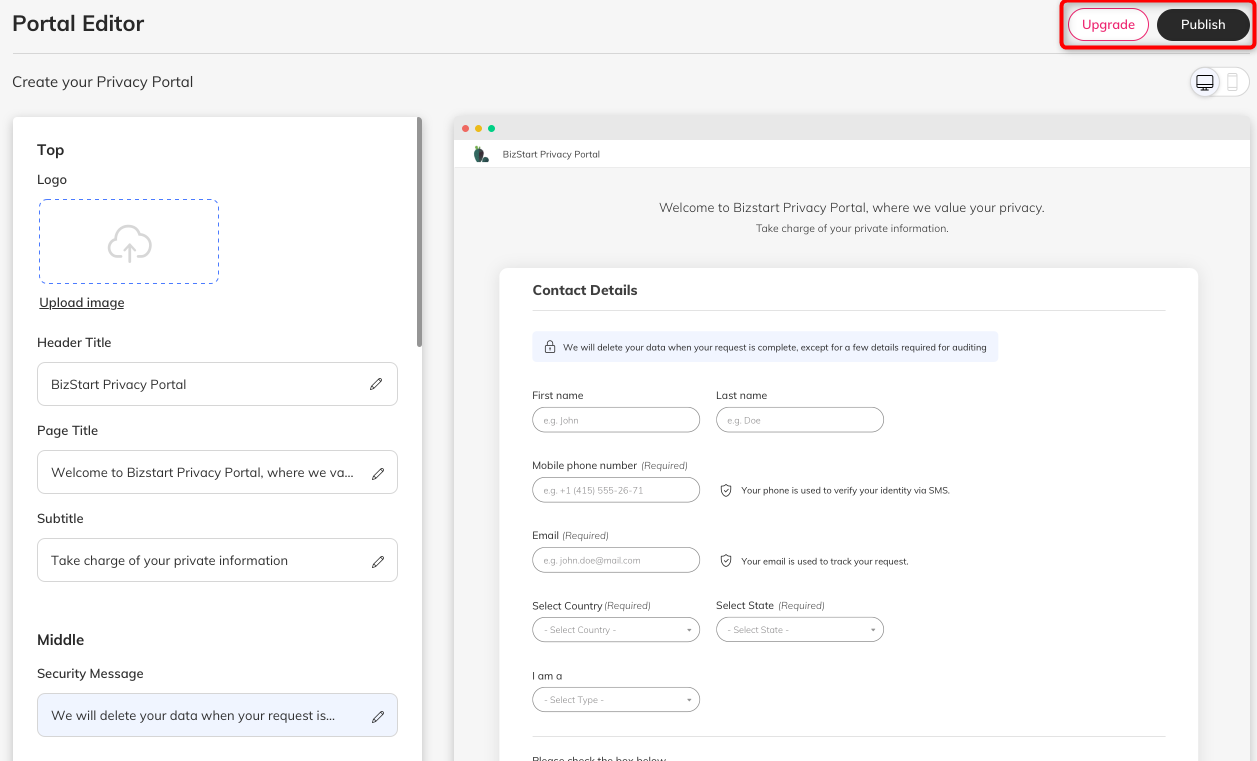
You portal is created. You are navigated to the Editor page to continue editing the Consumer Site. For more information, see Account Settings.
- Click Publish to finalize the process and receive a link to the Admin Portal.
You receive a 30-day free trial of the BigID.me Portal. To upgrade your portal to manage more requests, support system scan and include many more features, click Upgrade.
Adding Users
Send the link you received to colleagues to invite them to your site.
When a new user signs-up to the Portal, an account request appears under Settings > Users.
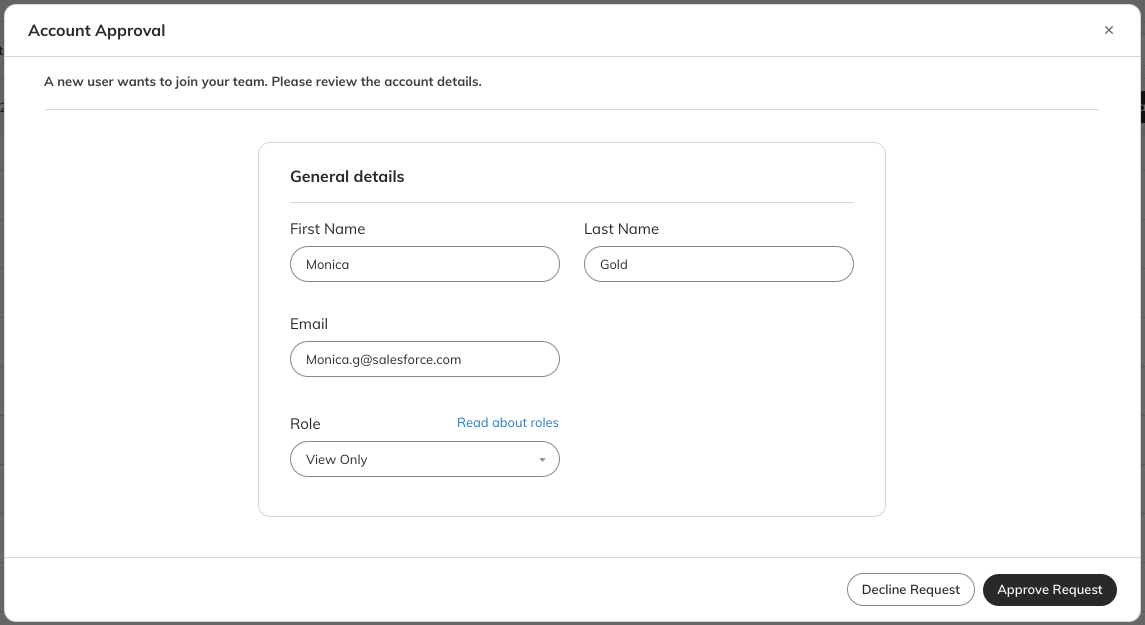
Review the request and select a role for the user, then click Approve Request.
The new user is added and receives a verification email.
Comments
0 comments
Please sign in to leave a comment.